
Ansh Kumar Maurya
Joined - April 2024

Adding a Custom Captcha Field
Note: Custom Captcha has been integrated into WPForms version 1.8.7 and above. You won’t need to install an addon if you’re using the latest version of WPForms. However, if you’re still using an earlier version, you’ll need to install and activate the Custom Captcha addon.
To start, create a new form or edit an existing one to access the form builder. In the form builder, you’ll find the Custom Captcha field under Fancy Fields.
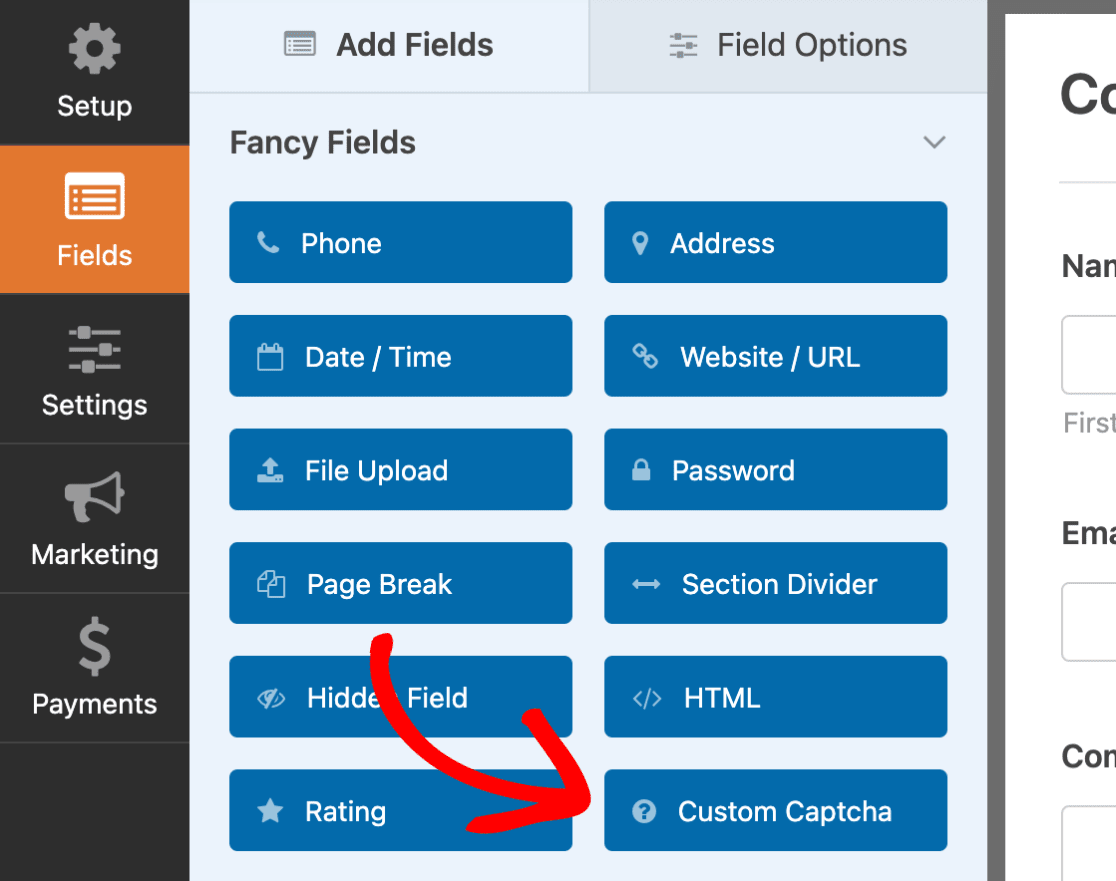
To use this field in your form, simply drag and drop it into the form preview panel in your form builder. The Custom Captcha field will always be required so users have to answer the questions before submitting the form.
To customize the field, click on the field in the form preview panel to open up its Field Options. Here you can make changes to the Custom Captcha field, such as the Label, Type, and Description.
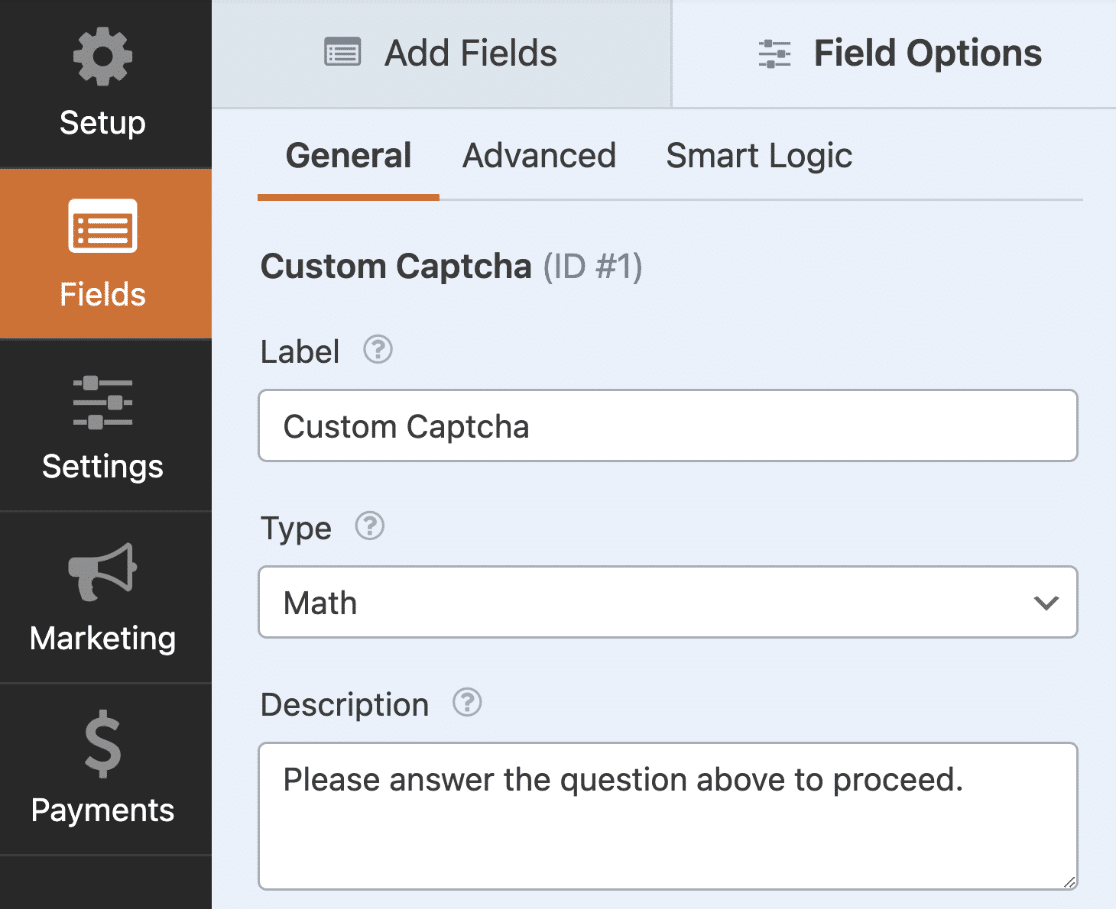
In the next sections, we’ll explain the 2 available Captcha types you can use for your form.
Math Captcha
This is the default option when you add the Custom Captcha field to your form. The Math Captcha will randomly generate addition, subtraction, and multiplication questions in the form.
When the form is published on a page, the field will display a new random math question each time the page is loaded or refreshed. Here’s an interactive form with Custom Captcha enabled.
Try this Form Demo!
Email * Request Type * Customer Support Product Inquiry Other Request * Custom Captcha * 9 * 7 = Please answer the question above to proceed. Submit
Note: If you’d like to customize the Math Captcha, you can do so using some custom code. Please see our tutorial on how to change the Math Captcha for more details.
Custom Question and Answer
Alternatively, you can use a custom question and answer instead of the Math Captcha type. To do so, in the Field Options panel, go to the Type field to select the Question and Answer option.
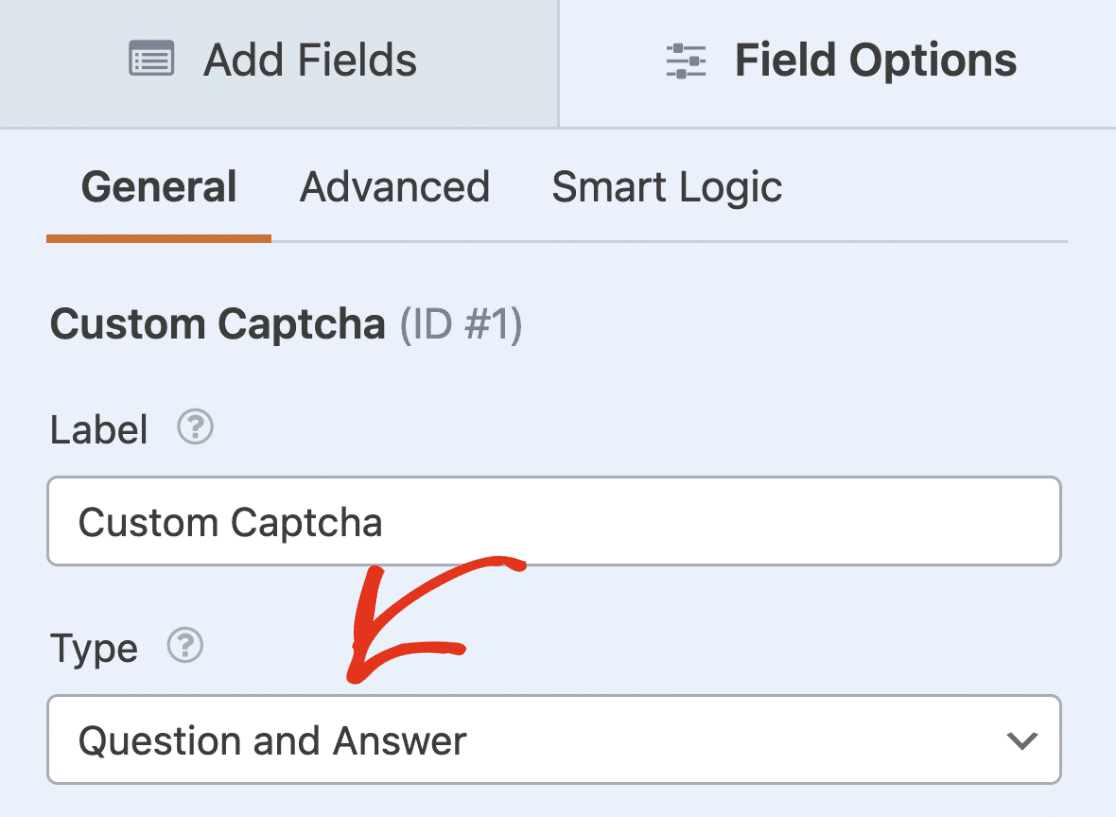
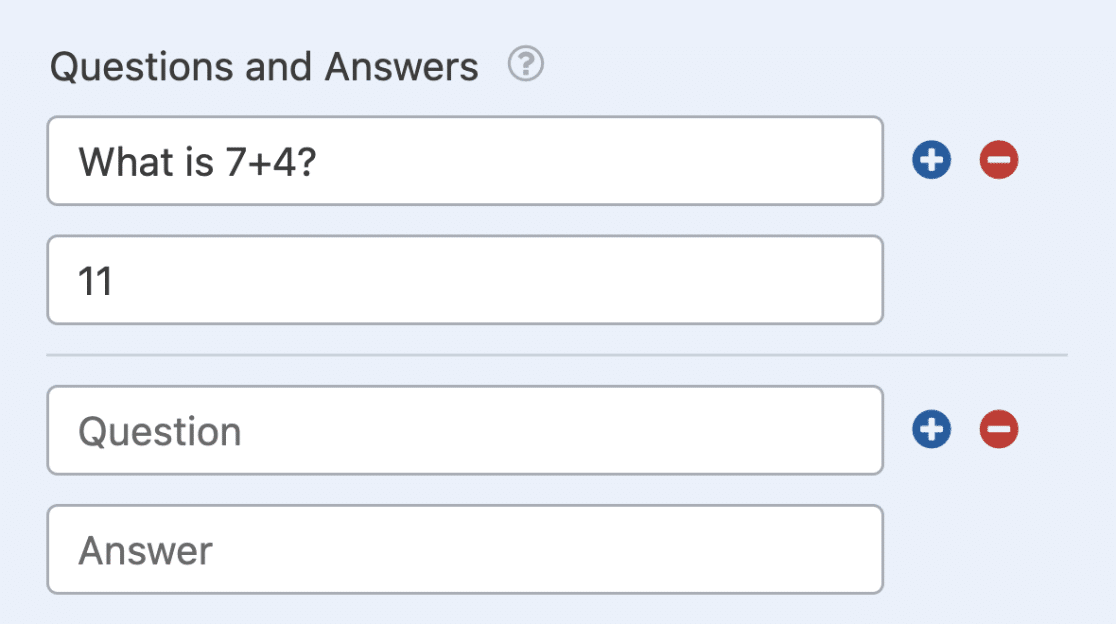
Next, add a question in the first field, and its answer in the second field.
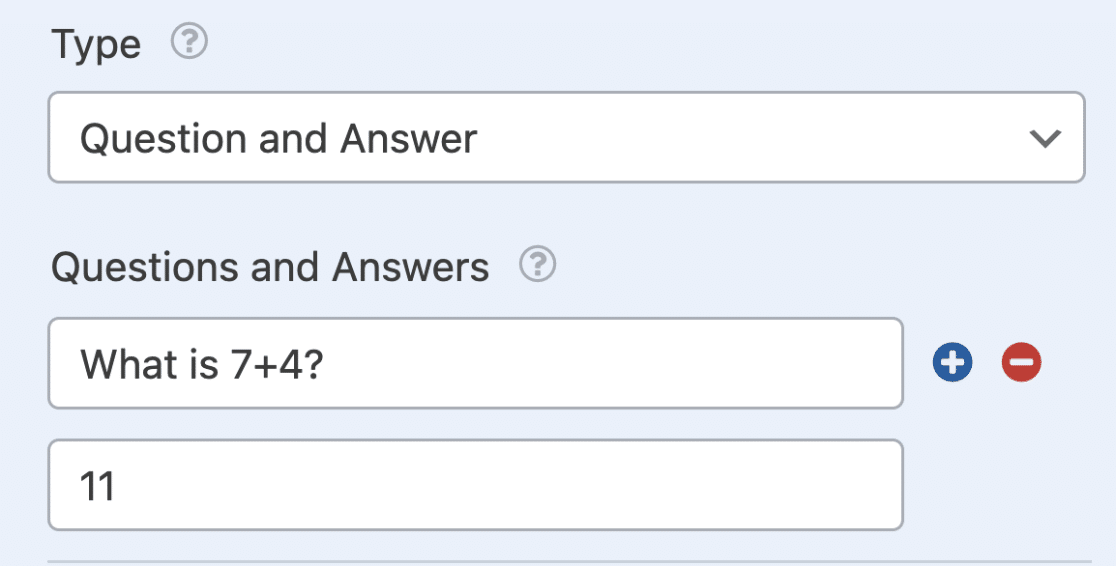
If you’d like, you can add or remove sets of questions and answers by clicking on the plus (+) or minus (-) buttons respectively.
By Ansh Kumar Maurya In WordPress Plugins
₹4.99

Get the updates, offers, tips and enhance your page building experience
Up to Top
Comments